

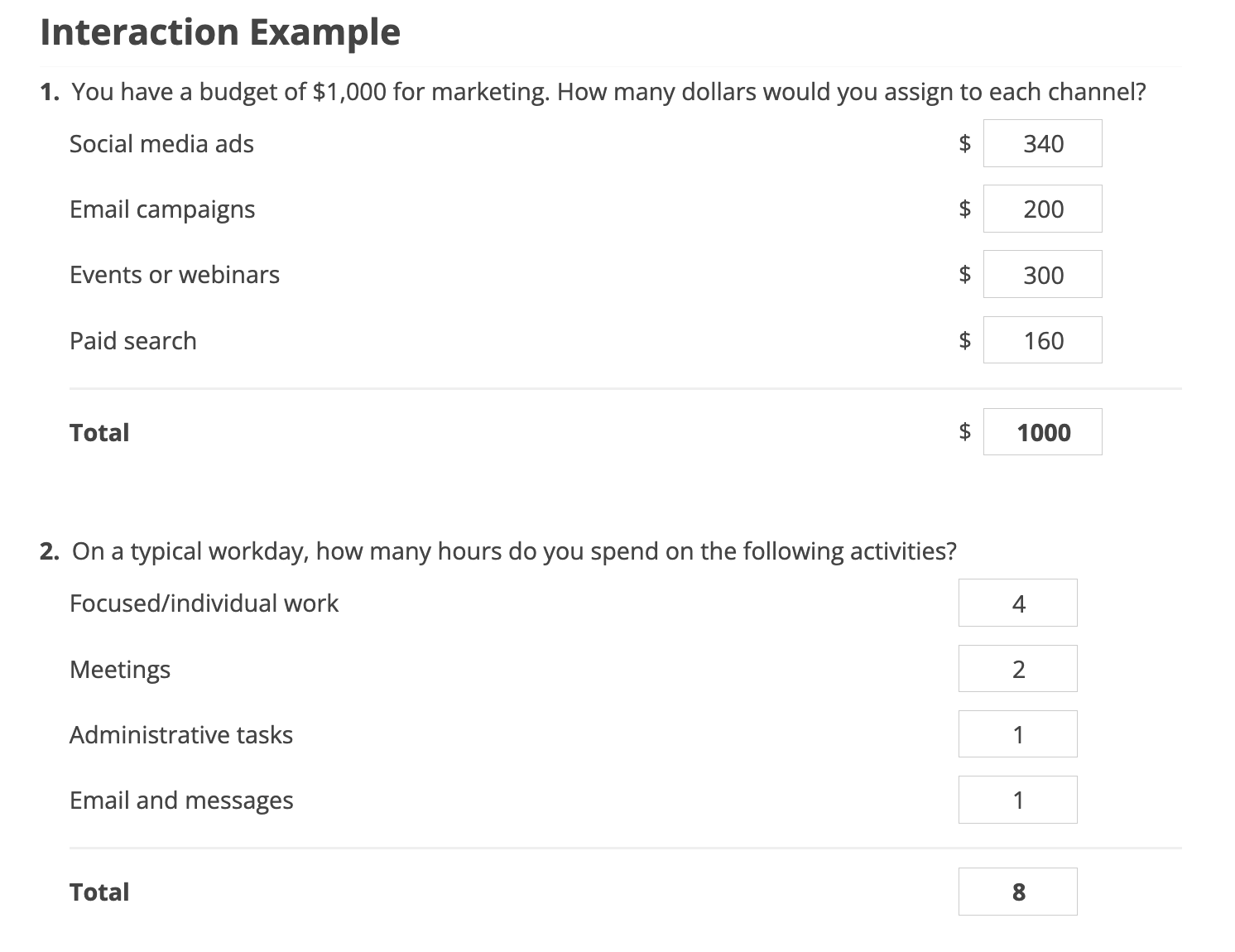
The Continuous Sum question type lets participants enter numeric values (for example, percentages, hours, points, or dollar amounts) against a list of items. These values are then automatically added together into a total.
You can use this question type to distribute a larger total across several items (like a budget or number of hours) or simply to collect multiple numeric inputs and see their combined total. You can also choose whether to show the running total to participants while they answer by using the Display Total setting.
This question type is not scored.
How to Create a Continuous Sum question
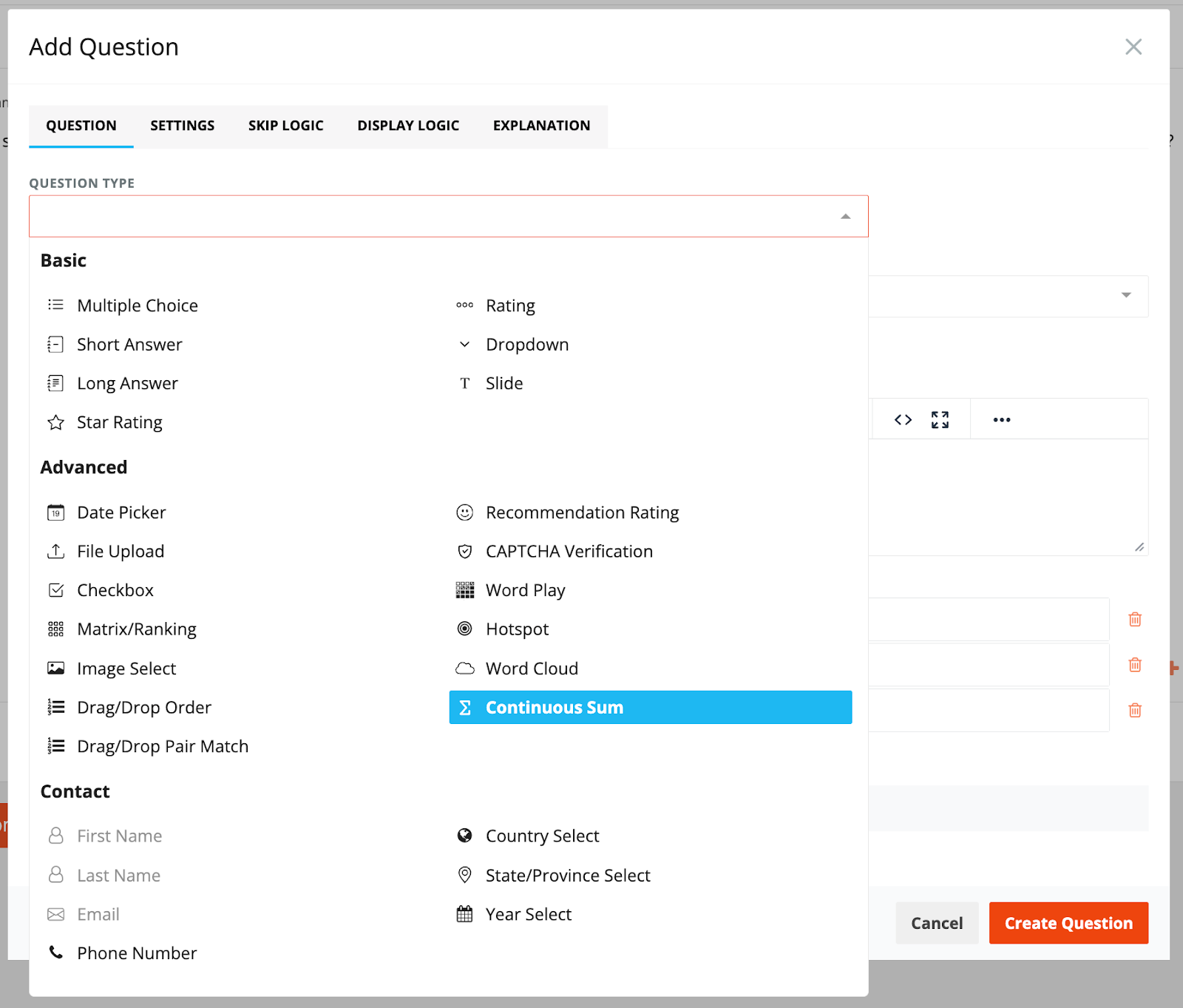
1. To create a Continuous Sum question, navigate to the question modal and select the 'Continuous Sum' question type.
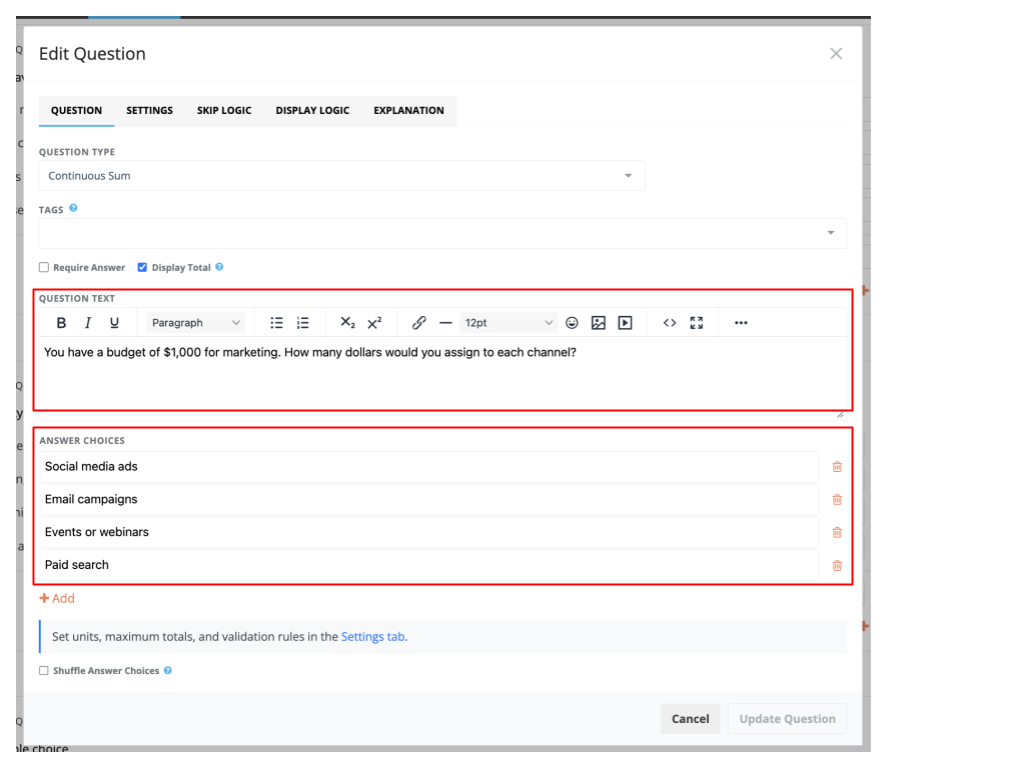
2. Enter the question text and add your answer choices.
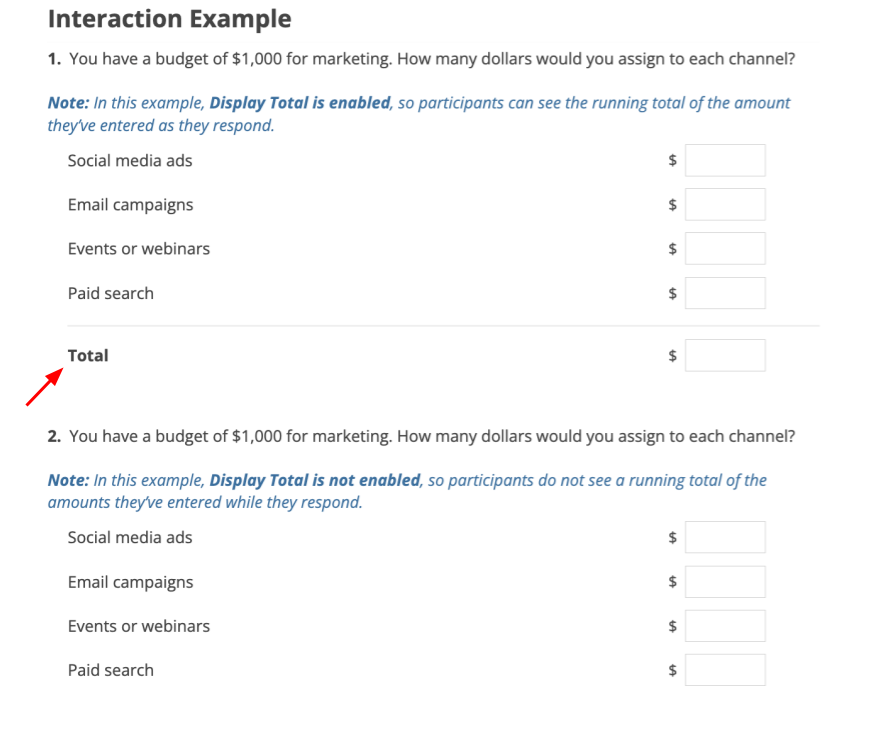
3. In the same modal, above the Question Text field, you can turn the Display Total setting on or off. This controls whether participants see the running total of their answers as they respond.
Additional Settings
You can configure additional settings - such as the unit, maximum total, and validation rules - in the Settings tab. You can open this tab directly, or click the info line under the answer choices, which includes a link that takes you to the same Settings tab.
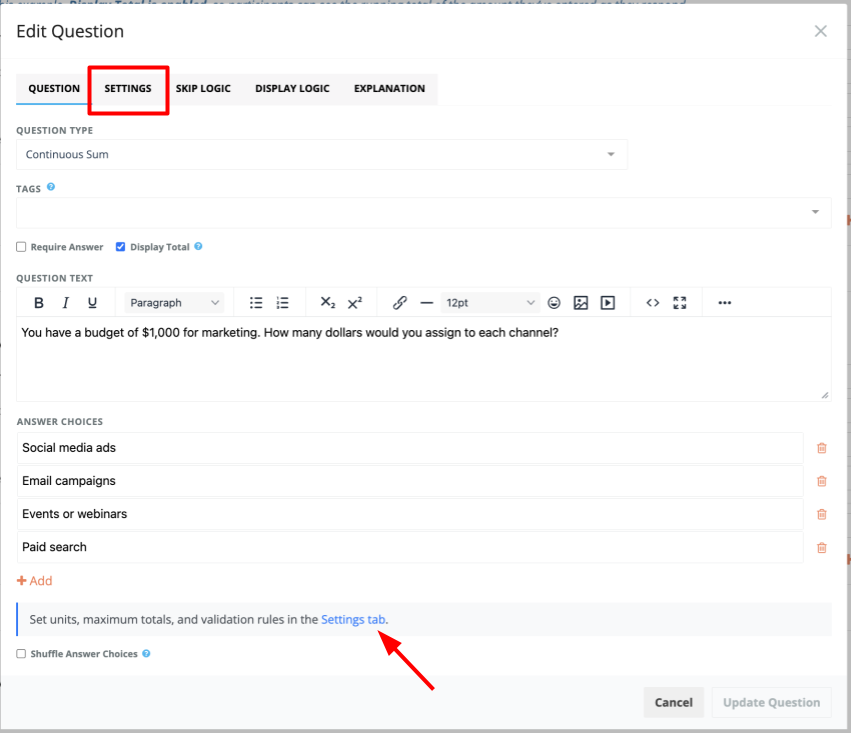
Additional Settings: Add Unit For Answer Choices
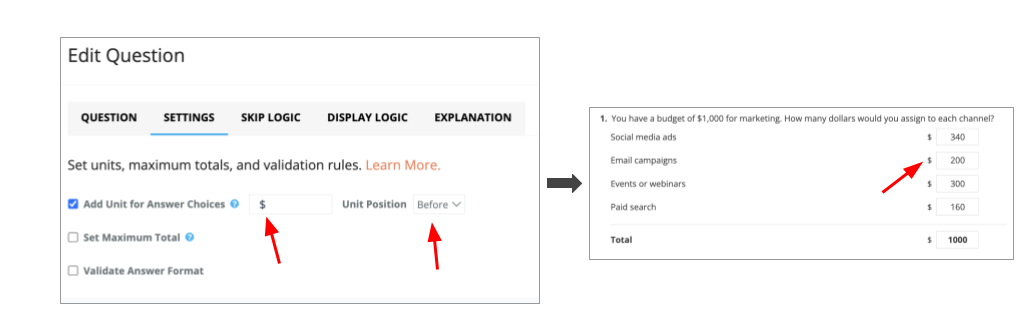
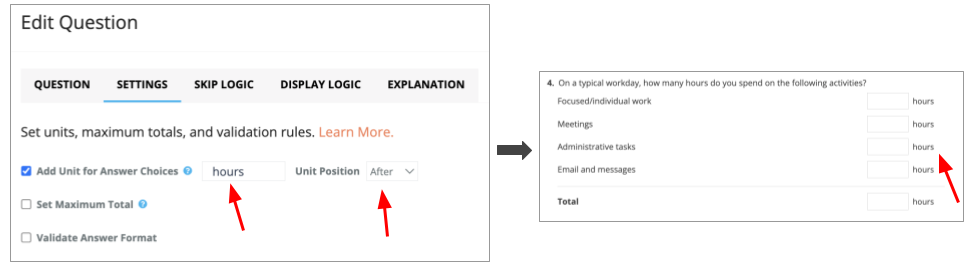
Use Add Unit for Answer Choices when you want to show what each number represents (for example, hours, points, %, or $).
When this setting is enabled, you can:
- Enter/Type in a unit that will appear next to each answer’s input box (hours, points, %, $, etc).
- Choose the unit position - before or after the input box.
Examples:
If you do not enable this setting, participants will still be able to enter numeric values, they just won't see the unit label next to the input.
Additional Settings: Set Maximum Total
The Set Maximum Total setting is optional. Use it when you want to control the total of all values participants enter for this question.
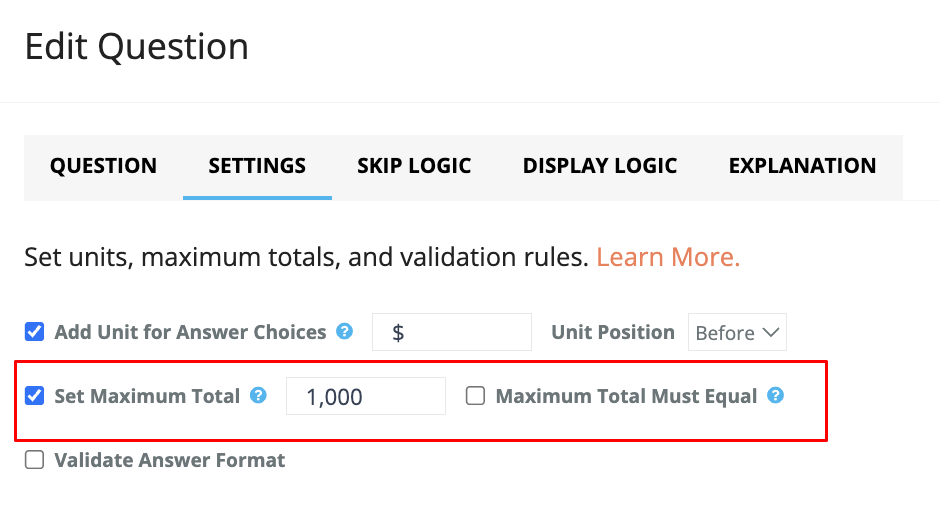
When this setting is enabled, you can:
- Enter a maximum total (for example, 24 or 100). Participants can enter values that add up to less than or equal to this number.
- Optionally turn on Maximum Total Must Equal, which requires participants’ answers to add up to this number exactly before they can continue.
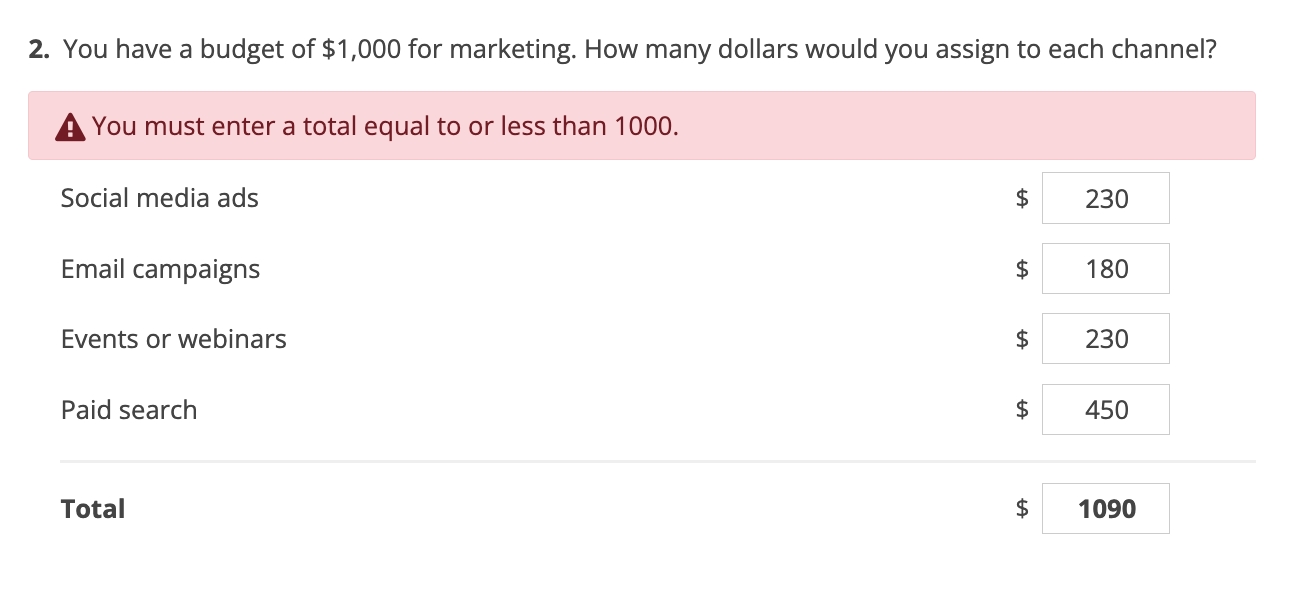
If participants enter values that exceed the maximum or do not match the required total, they will see an error message and need to adjust their answers before moving on.
Additional Settings: Validate Answer Format
The Validate Answer Format setting is optional and simply adds more control. By default, Continuous Sum questions only accept numeric values - whole numbers (no text).
When Validate Answer Format is enabled, you can choose whether answers must be whole numbers (for example, 1, 5, 10) or can be decimal numbers (for example, 1.5, 2.75). You can also set a minimum and/or maximum value for each answer choice. This range applies to each individual field, not to the total!
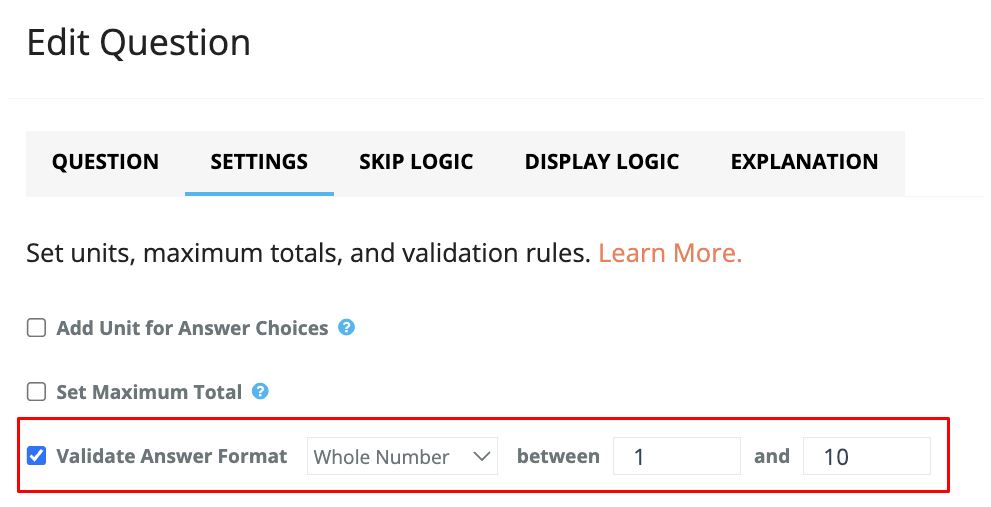
You can set both a minimum and maximum, only a minimum, or only a maximum. For example, if you select Whole number with a minimum of 1 and a maximum of 10, participants can only enter whole numbers from 1 to 10 (such as 3, 7, or 10). If you set only a minimum (e.g., 0), any value 0 or higher is allowed. If you set only a maximum (e.g., 100), any value up to 100 is allowed.
Data & Analytics
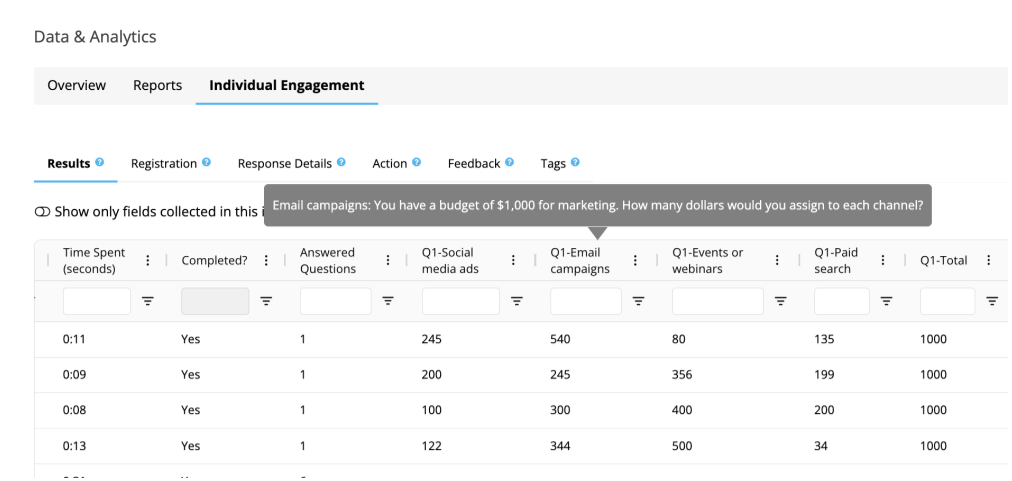
In the Individual Engagement tab (under Data & Analytics), you can view and analyze participant responses. For Continuous Sum questions, each answer choice appears in its own column, along with an additional Total column, so you can easily see what each participant entered and the overall total for that question.
Note: This question type is not yet available in Reports.