

The Reports tab displays a summary of your responses, giving you a visual representation of the collected data. Learn more here.
In addition to viewing reports, you can export your data to a CSV file for deeper analysis.
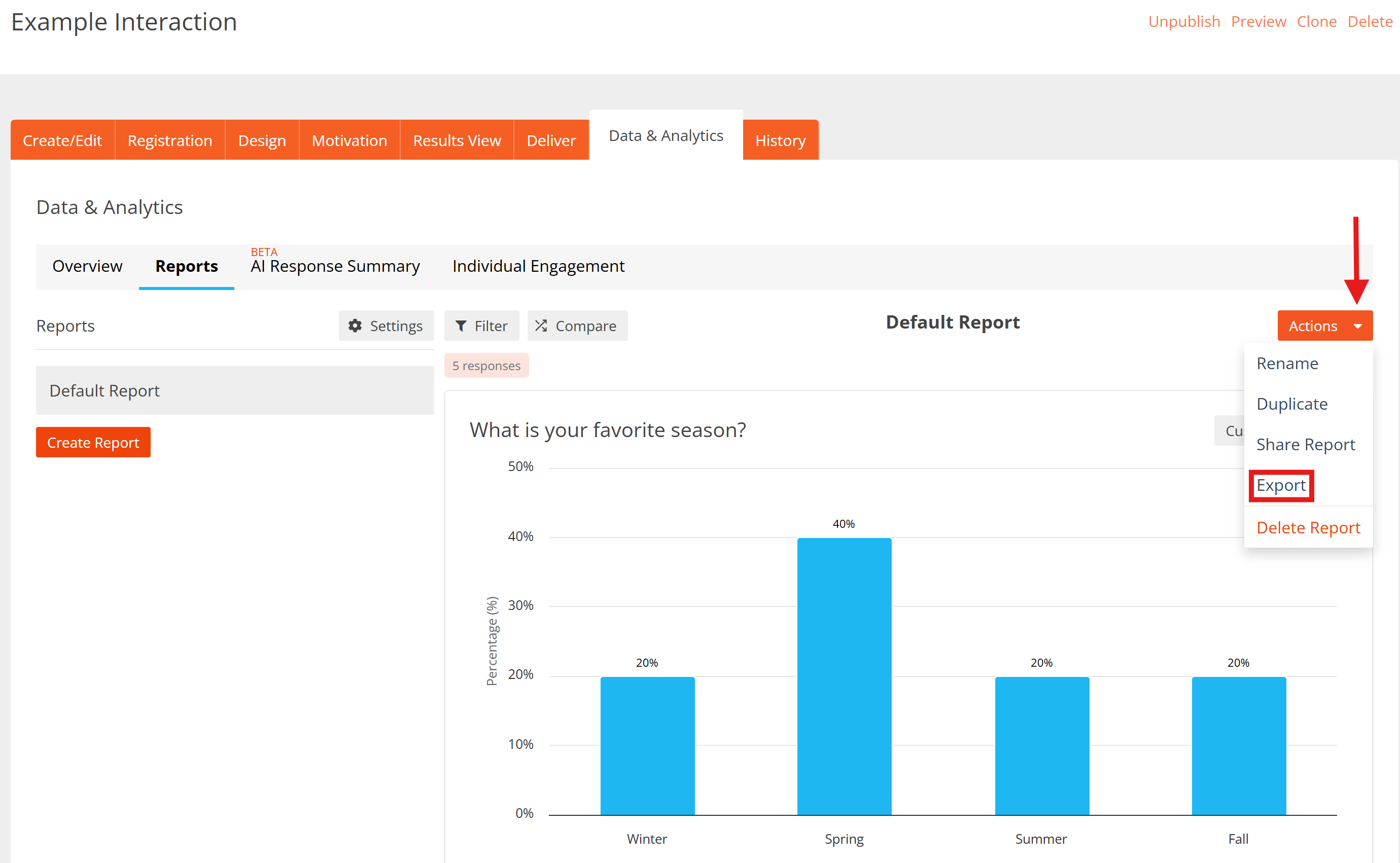
1. To export data, navigate to the Reports tab and open the report you want to export responses from. Click on the Actions button above the report and, in the menu, select Export.
2. A modal will open up where you need to select CSV as File Type.
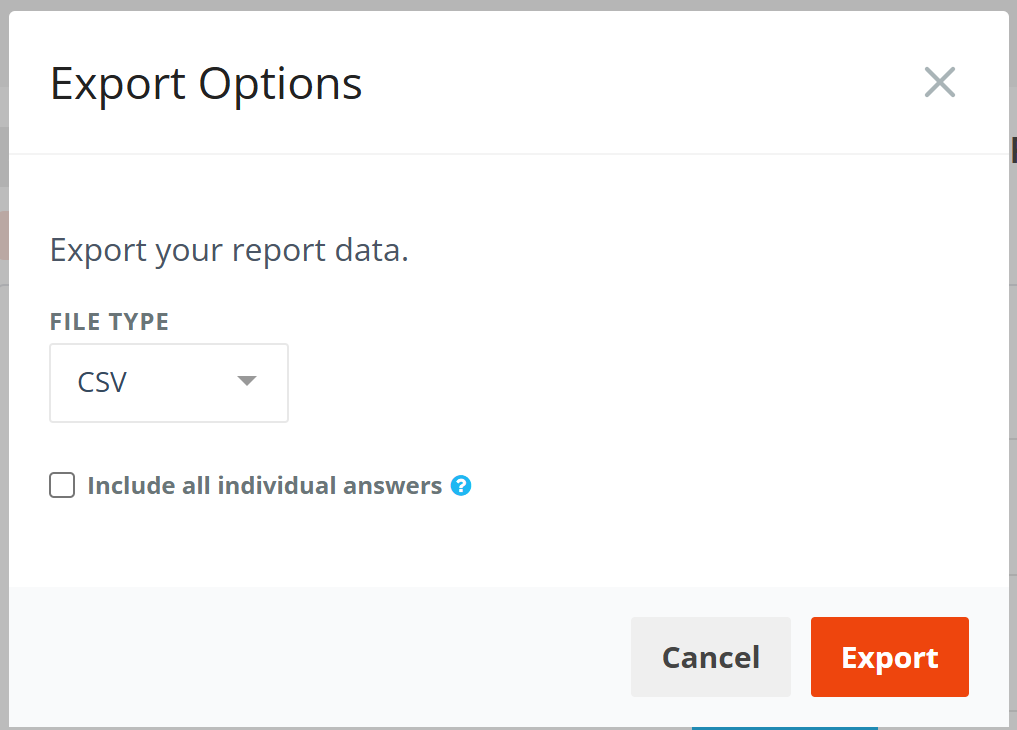
There is also a checkbox “Include all individual answers.” When this option is enabled, the export will include all individual responses for the following question types, with each response shown on its own row in the CSV file:
- Short Answer
- Word Cloud
- Long Answer
- Date Picker
- File Upload
- First Name
- Last Name
- Phone Number
If the checkbox is not selected, these question types are excluded from the export.
This option is added because these question types can collect a lot of data – many individual responses (one row per participant). It gives you control over whether to include all of these detailed responses or keep the export smaller and more high-level.
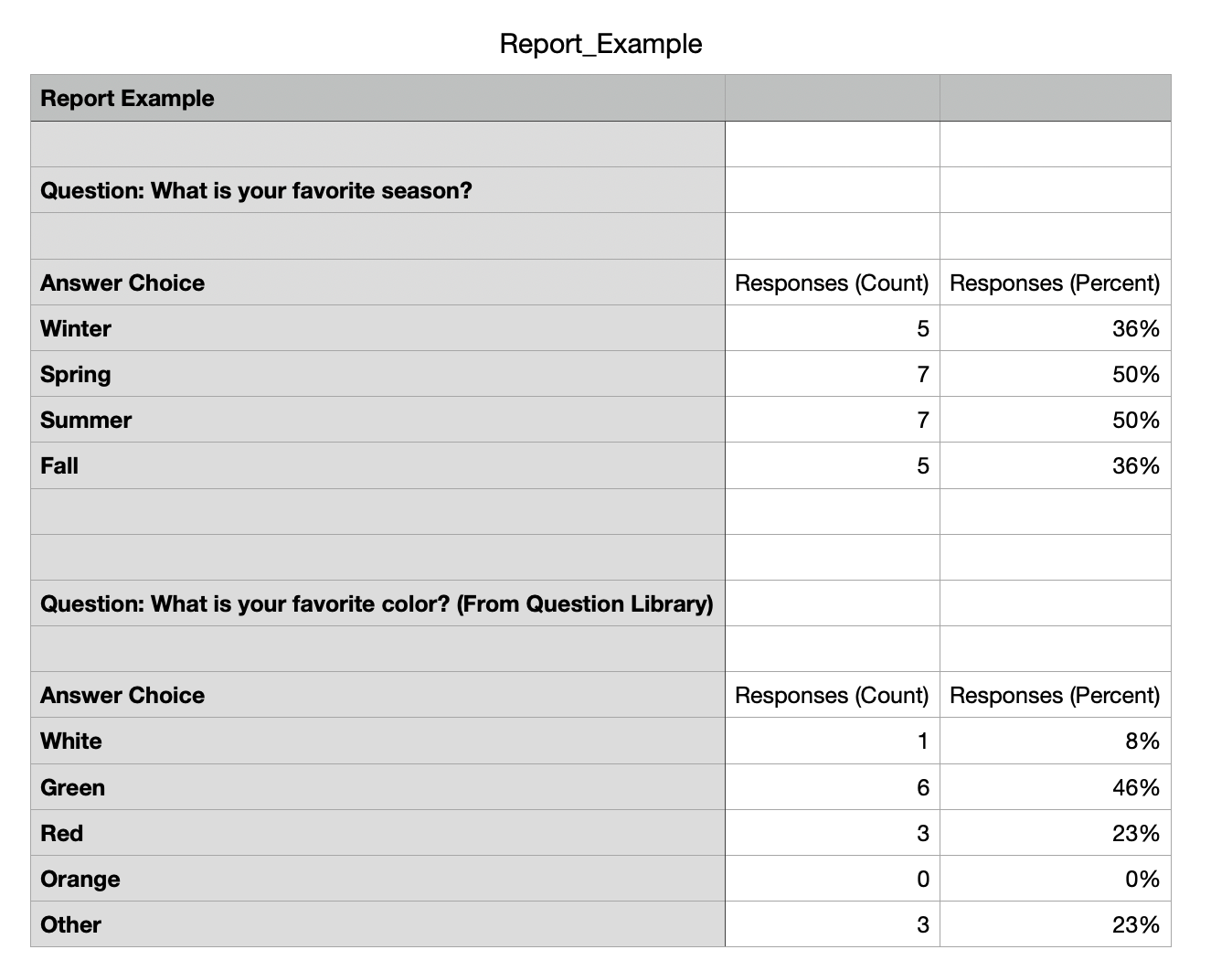
4. Once you click Export, the file will be generated and downloaded to your device.
Notes:
- Currently, Drag and Drop Order and Continuous Sum question types are not supported in CSV export - even if these questions are included in your report, they will not appear in the CSV file.
- If you have applied filters or segments, the CSV export will include the filtered/segmented responses only (the same data you see in the report).
- Images are not included in the export. Instead of the actual image, you will see a text placeholder “Image” in the CSV file.