

Recognitions allow you to award participants a custom badge designed by you, helping make the experience more engaging, rewarding, and memorable. Recognitions can be used in different ways: from lighthearted awards that make participation more fun, to more meaningful acknowledgements of achievement.
For a full overview of Recognitions - including how to create, customize, and assign them to interactions - see this Knowledge Base Article.
This article focuses specifically on the Share Page.
What is the Share Page?
Each awarded Recognition has its own dedicated Share Page - a unique, shareable page generated for every participant who receives a Recognition. Participants can access their Share Page through their Results View when Allow Sharing is enabled, and share it externally (for example, on social media or with colleagues) via a unique link.
As the user, you can also retrieve the link for any participant from the "Share Page" column in the participants table within a specific Recognition.
Customizing the Share Page
To customize the Share Page, open a specific Recognition and navigate to the Share Page tab.
Here, you can customize the page participants receive a link to when Allow Sharing is enabled in the Results View.
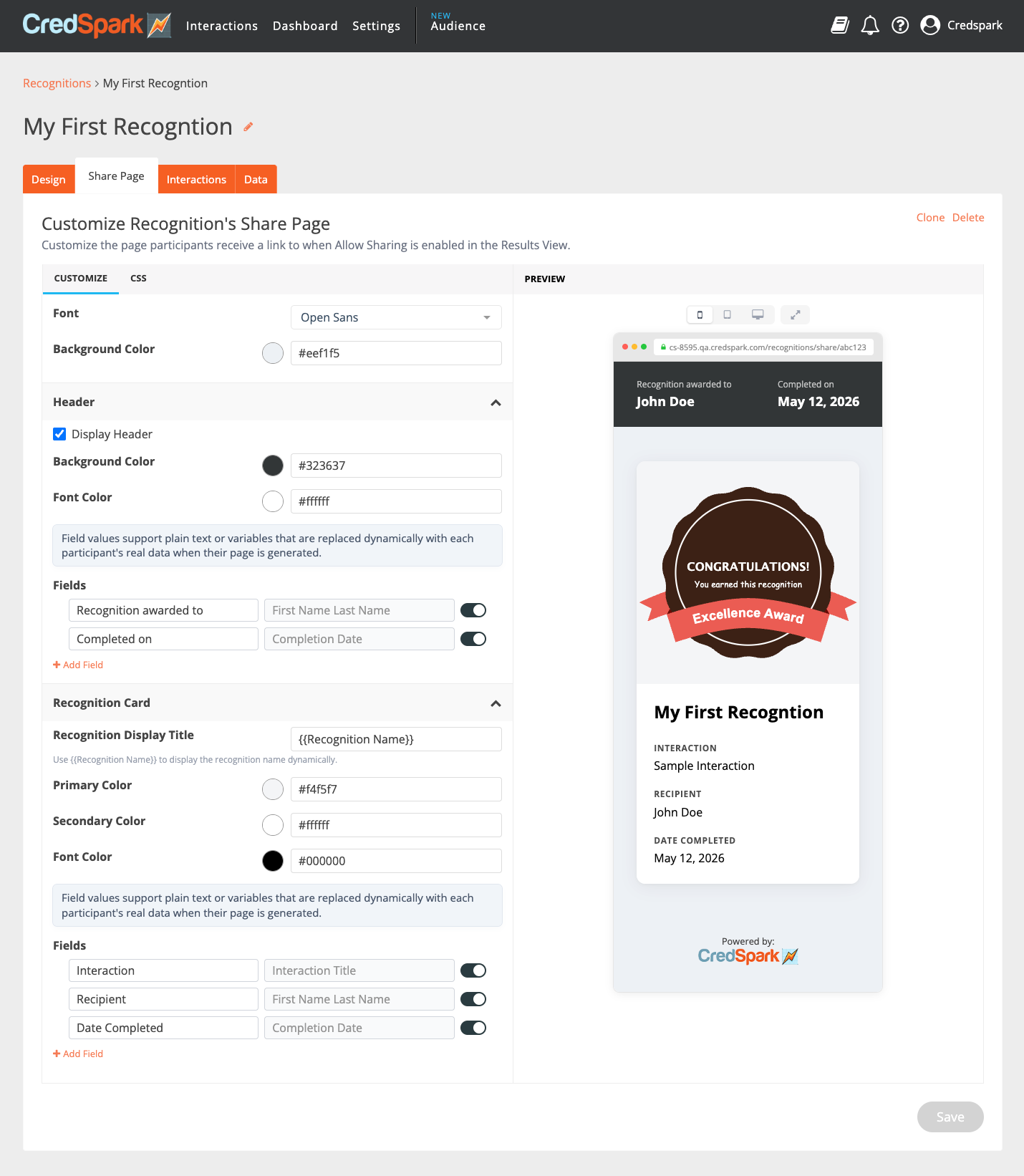
The editor is split into two sections:
- Customize - where you adjust colors, fonts, and displayed fields
- CSS - for advanced styling (optional)
A live preview of the Share Page is displayed on the right side, so you can see your changes as you make them. You can also switch between mobile, tablet, and desktop views using the icons above the preview.
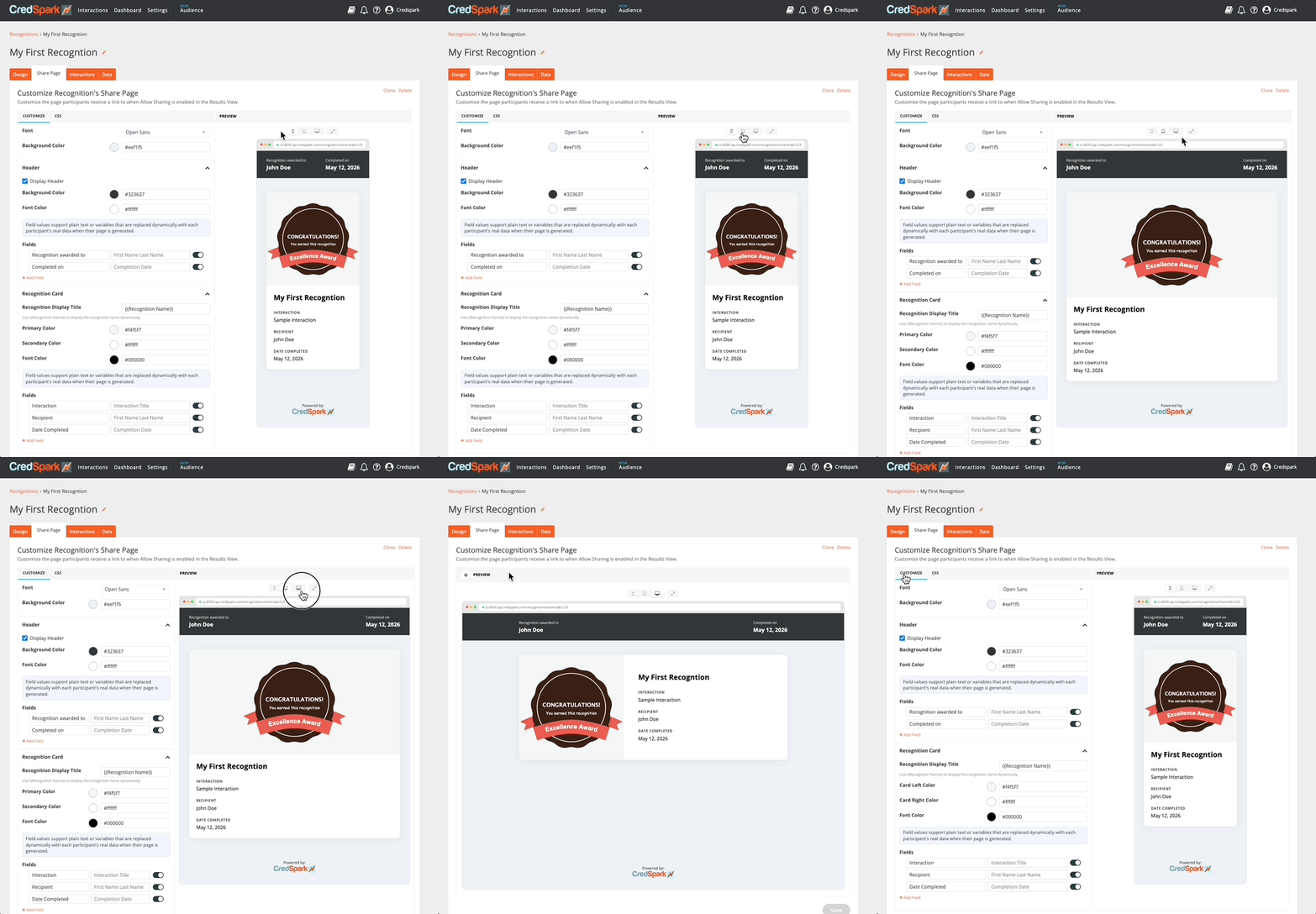
Note: The preview uses sample data for fields like participant's first and last name, completion date, and interaction title. When participants access their actual Share Page, these fields will display their real data.
General Settings
At the top of the Customize section, you can set:
Font - the font used across the Share Page
Background Color - the overall background color of the page
Header
The Header is the top section of the Share Page. By default, it displays information such as who the Recognition was awarded to and the completion date.
In this section, you can do the following customizations:
- Decide whether to show or hide the Header using the Display Header checkbox
- Change the Background Color and Font Color
- Edit the fields currently displayed or add new ones
Recognition Card
The Recognition Card is the main section of the Share Page, displaying the Recognition itself along with related details.
In this section, you can do the following customizations:
- Edit the Recognition Display Title - use {{Recognition Name}} to display the Recognition's name dynamically or enter a new title.
- Change the Primary Color and Secondary Color of the card
- Change the Font Color
- Edit the displayed fields or add new ones
Fields
Both the Header and Recognition Card sections include a Fields area, where you can manage what information is displayed. Each field consists of two text inputs that appear together on the Share Page.
We've already added some default fields, with content automatically pulled from each participant's data - so you don't need to set them up manually. For example, the "Recipient" field will automatically display each participant's first and last name.
This works through variables (such as {{First Name}}, {{Last Name}}, {{Completion Date}}, {{Interaction Title}}) that are already set up in the background for default fields.
What you can do with fields:
- Rename or edit the text in either input - for example, change "Recipient" to "Participant" or "Completed on" to "Awarded on"
- Show or hide any field using the toggle on the right
- Reorder fields by dragging them into the preferred position
- Add custom fields using the + Add Field button - useful for adding static informational text or additional details
- Make a field clickable by adding a link - for example, linking to your company's website. Click the link icon next to a field and enter the URL.
Default fields cannot be deleted, only hidden, so you don't have to recreate them if you change your mind later.
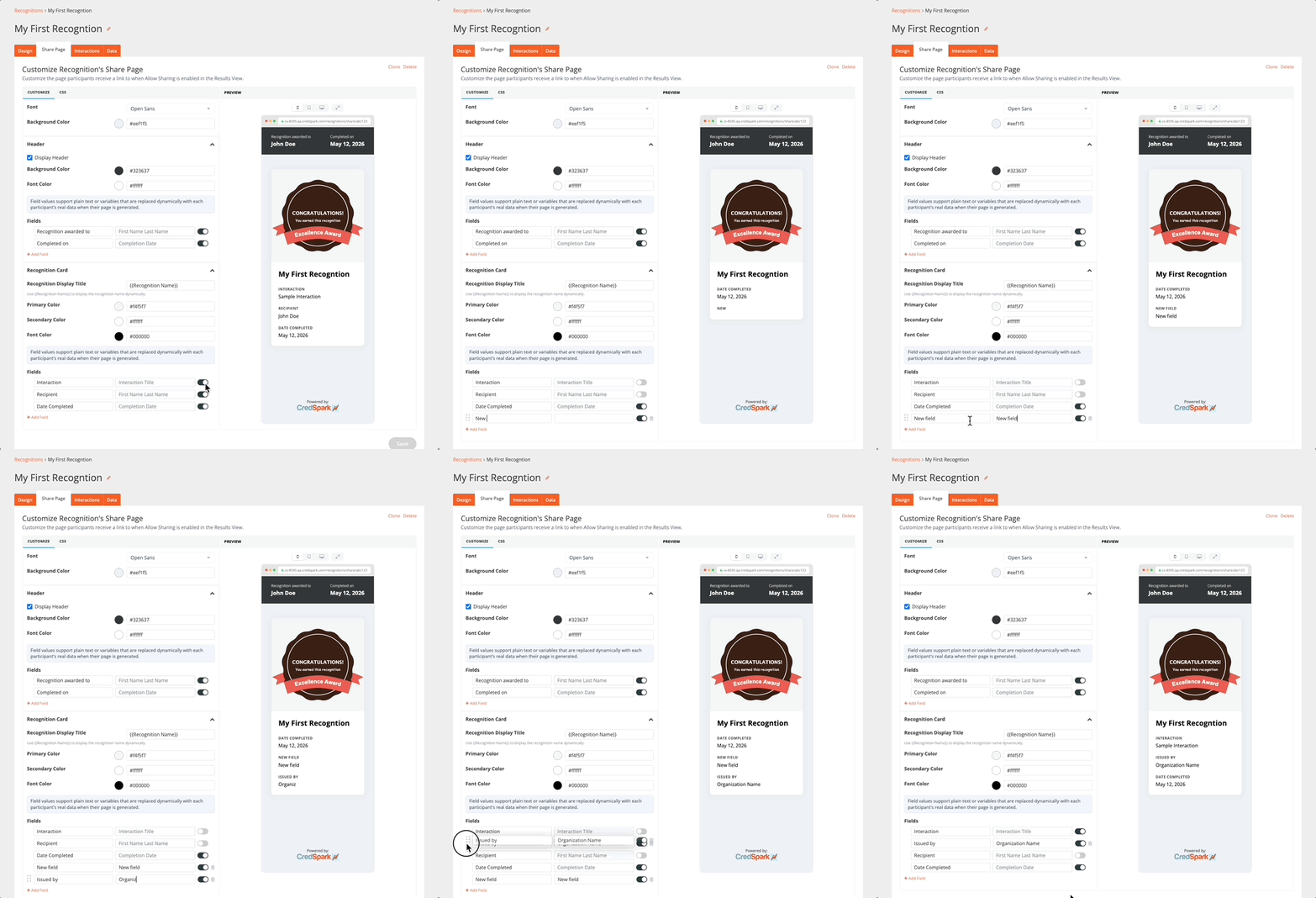
Important: To ensure the Share Page displays as expected, make sure your interaction collects the data for any fields shown on it. By default, this includes the participant's first and last name. For known users, CredSpark will already have this information - otherwise, add the relevant questions (e.g. First Name, Last Name) to your interaction.
Saving Your Changes
Always remember to save your changes by clicking the Save button at the bottom of the page.