

We're continuously working on improving the accessibility of our interactions, and design and colors play an important role in that. With the May 2026 Release, we're making a few tweaks to our default color theme so it better meets accessibility standards.
This article walks through what's changing, where you'll notice the changes, and how this update affects existing interactions.
What's Changing
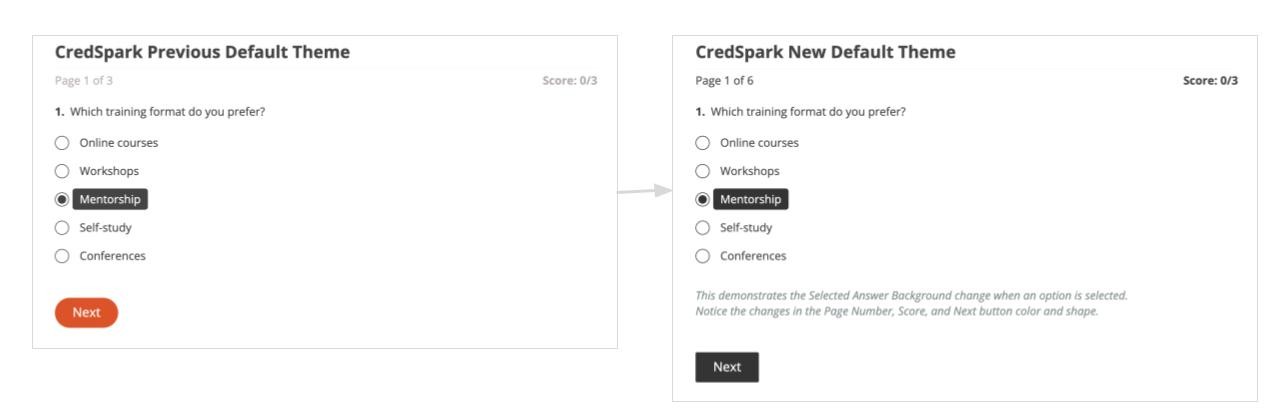
Buttons: color updated from orange (#EE450D) to dark gray (#343434), with a slightly less rounded, more modern shape.
Page Numbers / Question Progress Indicator: color darkened from #B5ADAA to #444444 for better contrast.
Selected Answer Background: darkened slightly from #444444 to #343434 to match the new button color.
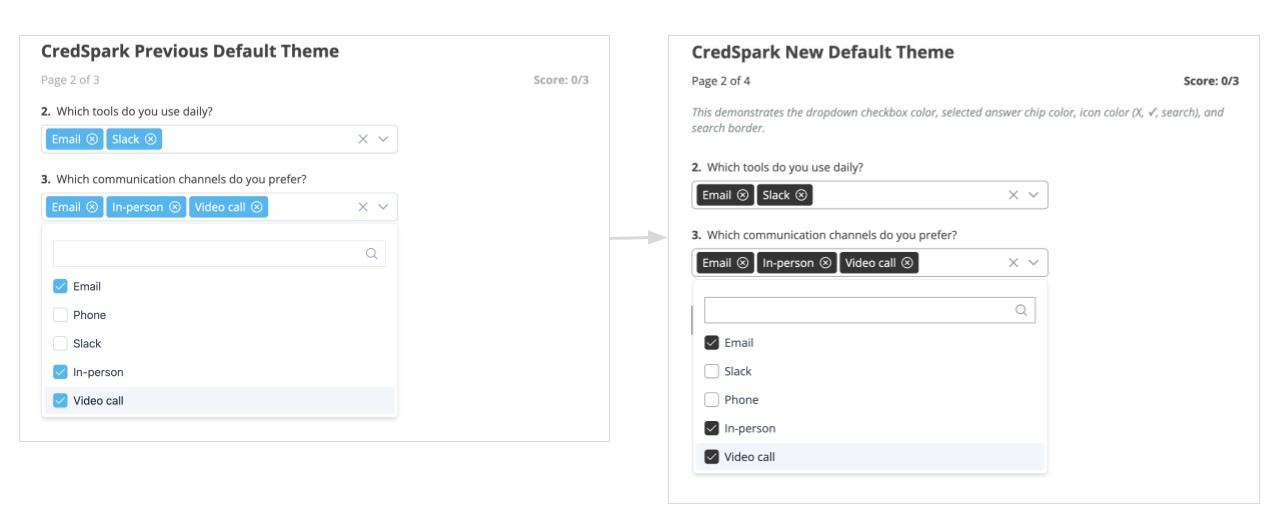
Dropdown (Multiple Select): Checkboxes and selected answer chips have been updated from blue to gray (#343434). Icons (X, ✓, search) have been updated to #949494, and the search border has been darkened - all for better contrast.
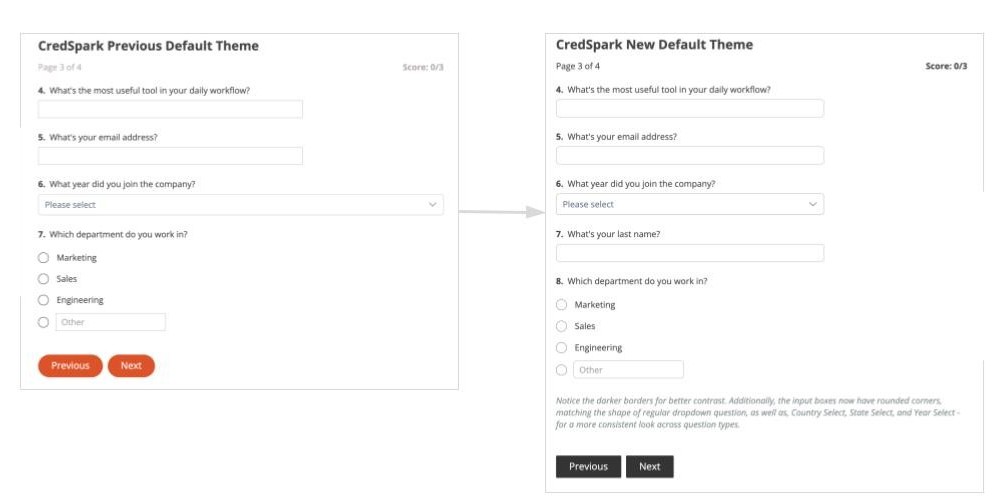
Input Boxes: Borders darkened to meet the 3:1 contrast ratio. Corners have also been rounded for question types such as Short Answer, Long Answer, Email, First Name, Last Name, Phone Number, and the "Other" answer choice - for a more consistent look across question types.
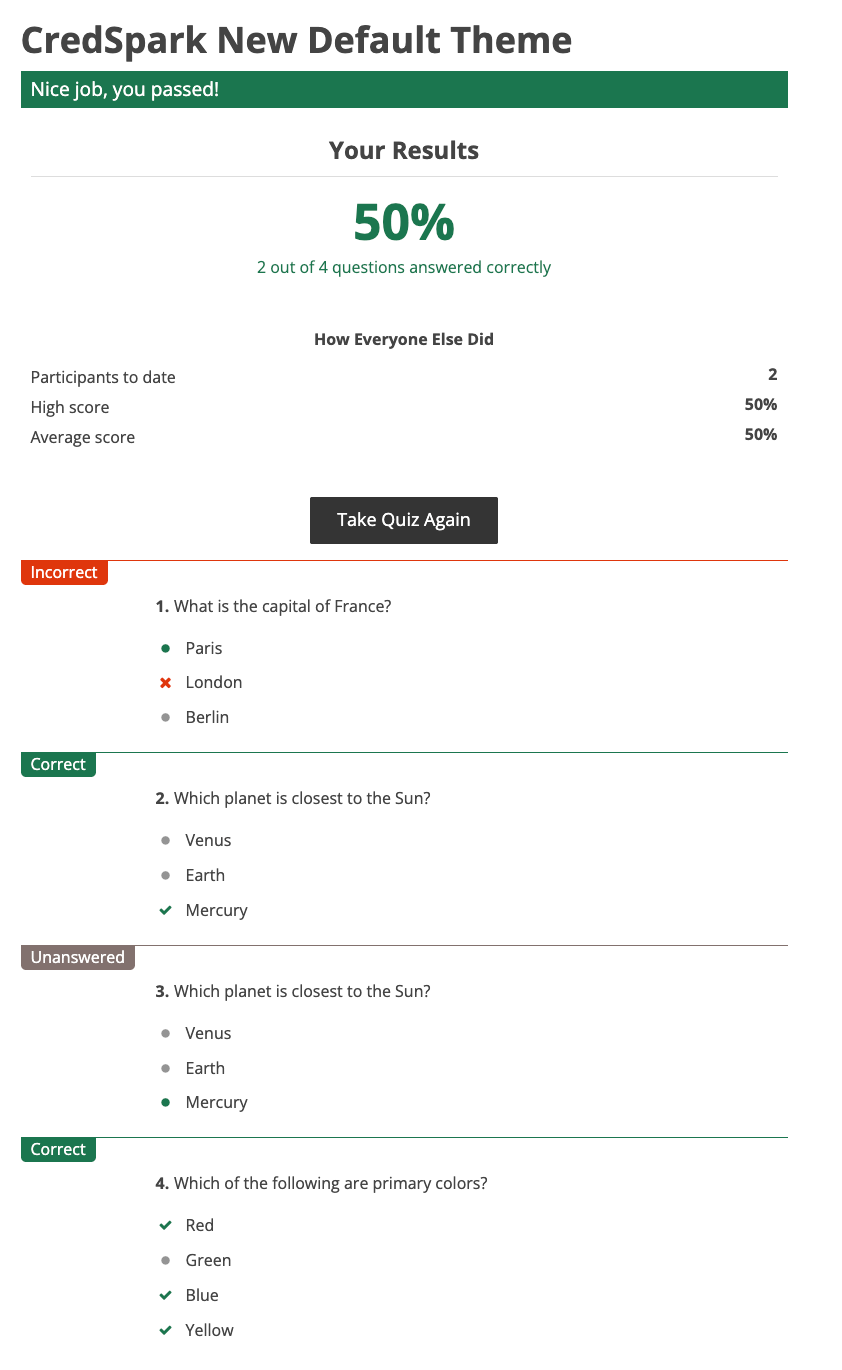
Instant Answers - Correct: Background updated from bright green (#1FBE37) to darker green (#1A754F), with the checkmark icon changed to white.
Instant Answers - Incorrect: The red background color stays the same. The checkmark icon has been updated to white, and the "Incorrect" label color has been adjusted.
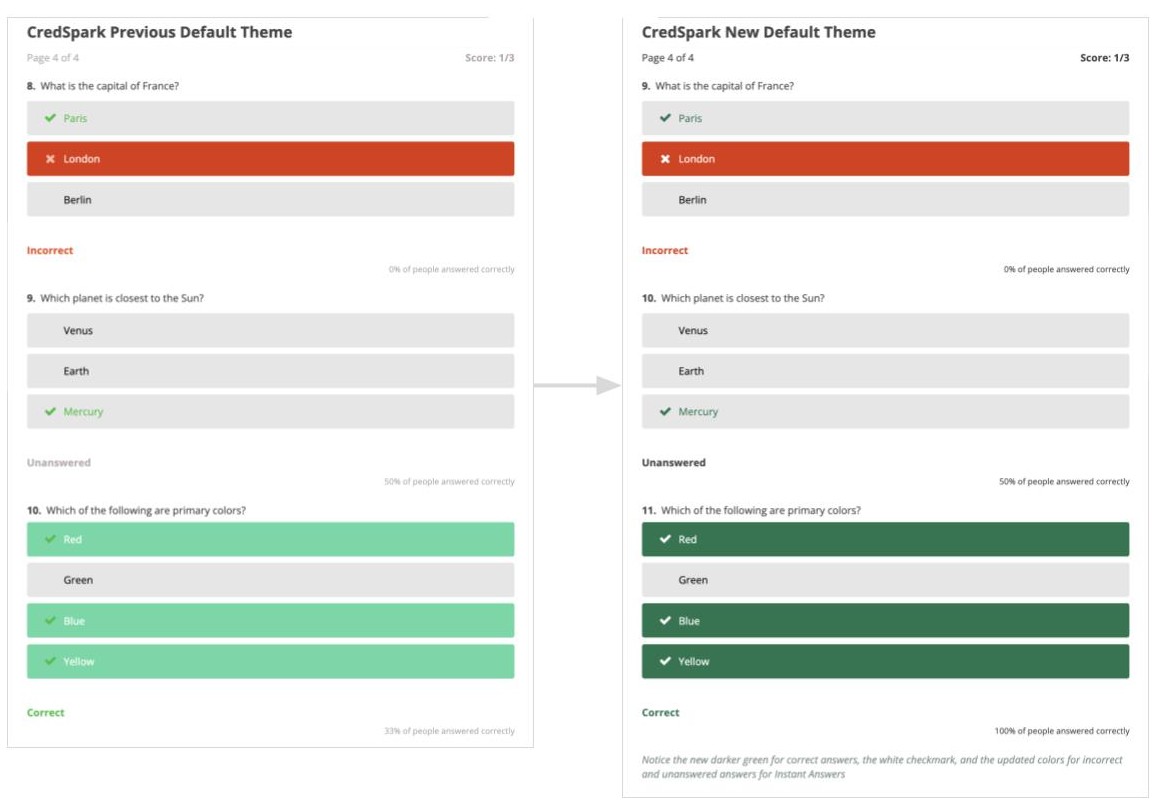
Live Mode: Live Mode correct/incorrect/unanaswered answers use the same colors as Instant Answers, so all Instant Answer updates automatically apply here as well.
Results View for Quizzes: The Correct label color has been updated from bright green to the new darker green, matching the Instant Answer changes. The unanswered question label has also been updated to darker gray.
How does this affect existing interactions?
- If an interaction uses CredSpark default theme and no design changes have been made, it will automatically start using the new colors.
- If an interaction has any design changes made and saved in the Design tab (e.g. button color, font style, font size), it will keep its current look - the new defaults will not override your customizations.
- For Instant Answers specifically, you'll most likely see the new darker green color, since these colors aren't controlled through the Design tab - they can only be customized via custom CSS. If you've already applied custom CSS to change Instant Answer colors, your CSS will be kept.
- For Results View customizations: if you haven't changed the Q&A block colors, it will automatically update to the new darker green (the red stays the same). If you've already customized it, your colors will stay.
What can be customized from the Design or Results View tab vs. CSS
Some elements can be changed directly from the Design or Results View tab, while others require custom CSS.
What can be changed from the Design tab:
- Question Progress Color (Page Numbers) - Design Tab → Frame
- Text elements for Instant Answers (score, % answered correctly) - Design Tab → Frame
- Button Color, Border Color, and Corner Radius - Design Tab → Button Style
- Input Border Color (for Short Answer, Long Answer, etc.) - Design Tab → Text → Additional Color Controls → Input Border Color
- Selected Answer Background Color - Design Tab → Text → Additional Color Controls → Selected Response Background Color
What can be changed from the Results View tab:
Correct and Incorrect label colors (but not Unanswered) - Results View Tab → Questions and Answer Block → Correct Answers
Headline background color - Results View Tab → Headline Block
Requires CSS:
Instant Answer background colors and labels
Dropdown multiple select (selected answer chips and checkboxes)
Results View - Unanswered label color
As always, your feedback and questions are most welcome at support@credspark.com.