

Looking for something more eye-catching than a plain old hyperlink? Try adding buttons to your interactions to point participants somewhere - a resource, a landing page, a next step. Each button can be fully customized, or left to match the button styling from your Design tab.
Where you can add a button
The button option is available in these areas:
- Custom Message block in Results View
- Score Range (Description)
- Outcome (Description and Post-Quiz Suggestion)
How to add a button
1. Open the block in which you want to place the button.
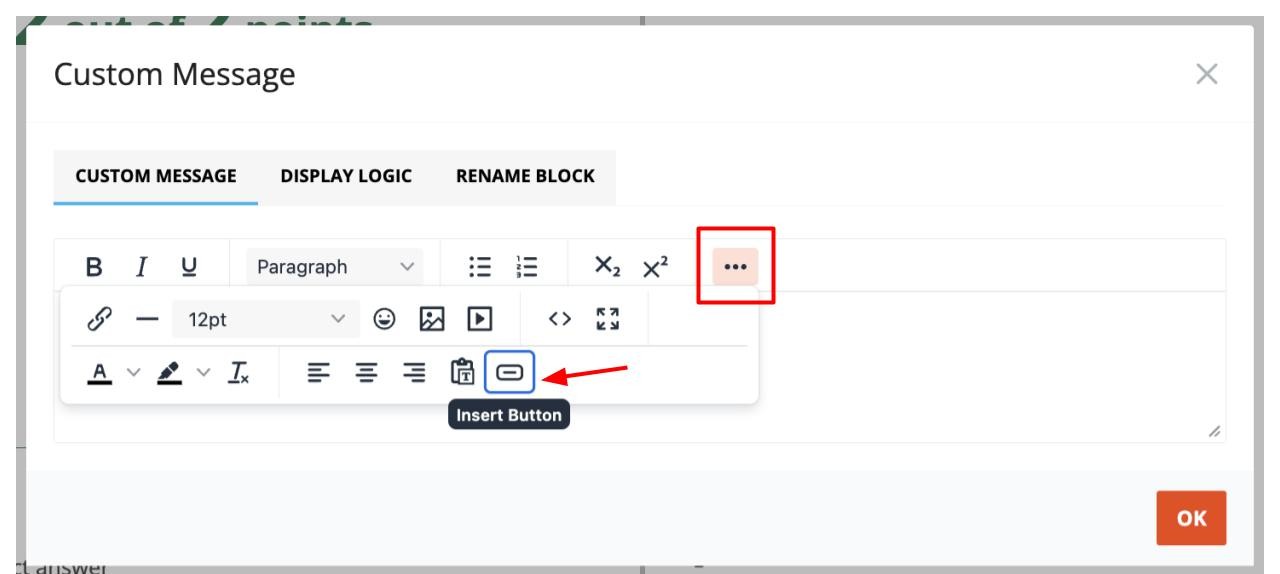
2. In the rich text toolbar, click the three dots (...) to open the additional formatting options.
3. Click Insert Button.
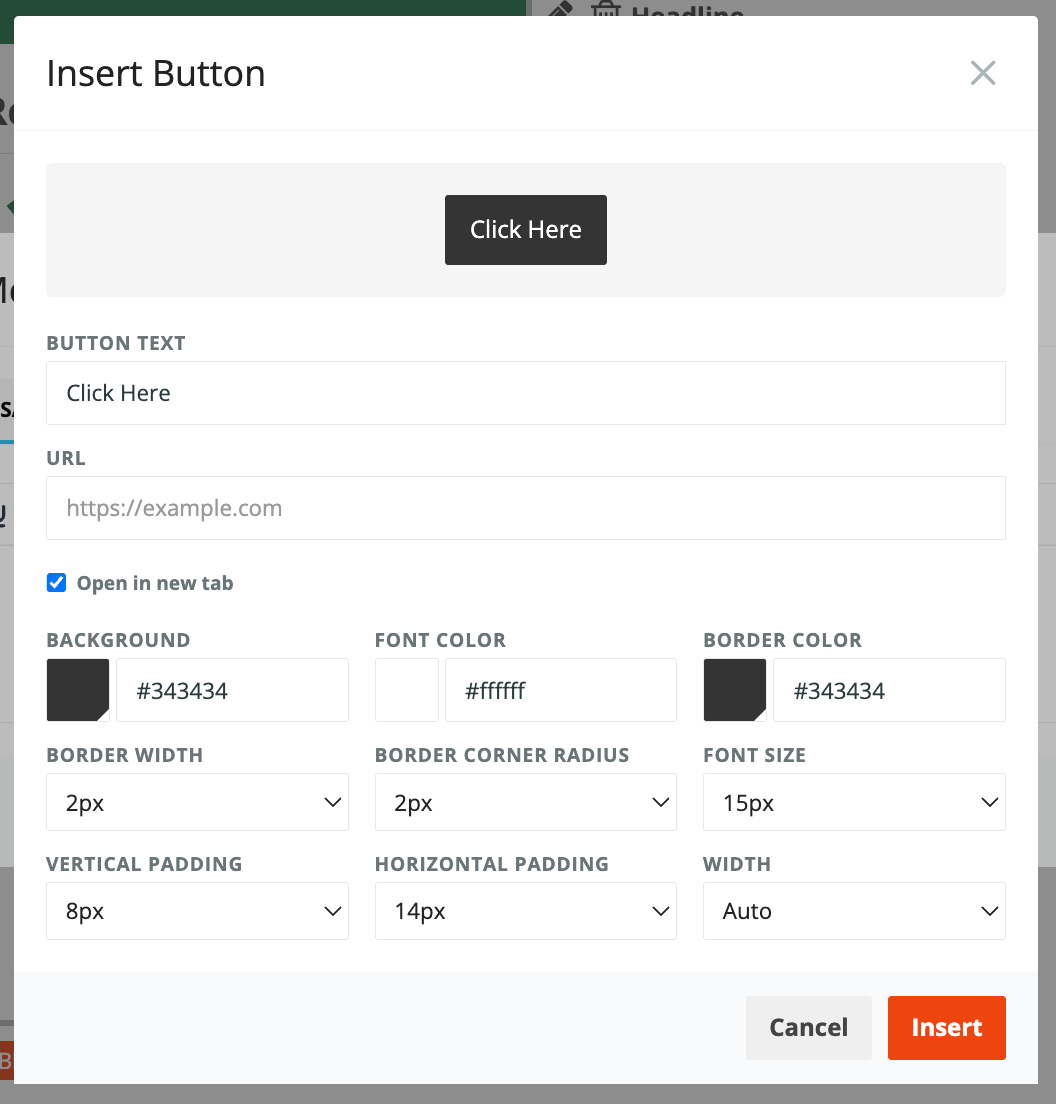
4. In the window that opens, enter your Button Text and the URL participants should be directed to. A preview of the button shows at the top as you make changes.
5. Adjust the styling if you'd like.
6. Click Insert.
By default, the button uses the styling set for your buttons in the Design tab - the same look as your Next, Previous, and other navigation buttons. You can override any of it here without changing your Design tab settings.
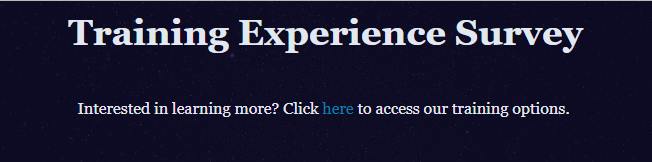
Here is an example of a Results View that uses a link:
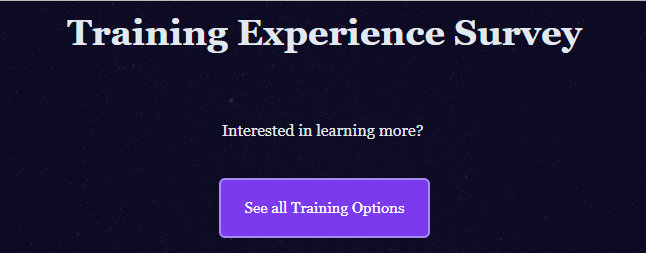
And here’s what that same content could look like if you used a button, instead:
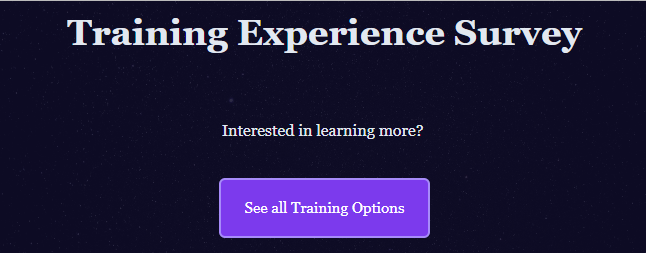
Customization options:
- Button Text - the label shown on the button
- URL - where the participant goes when they click it
- Open in new tab - opens the link in a new browser tab (on by default)
- Background - button fill color
- Font Color - text color
- Border Color, Border Width, Border Corner Radius - controls the outline and how rounded the corners are
- Font Size
- Vertical Padding / Horizontal Padding - space inside the button, around the text
- Width - how wide the button is