

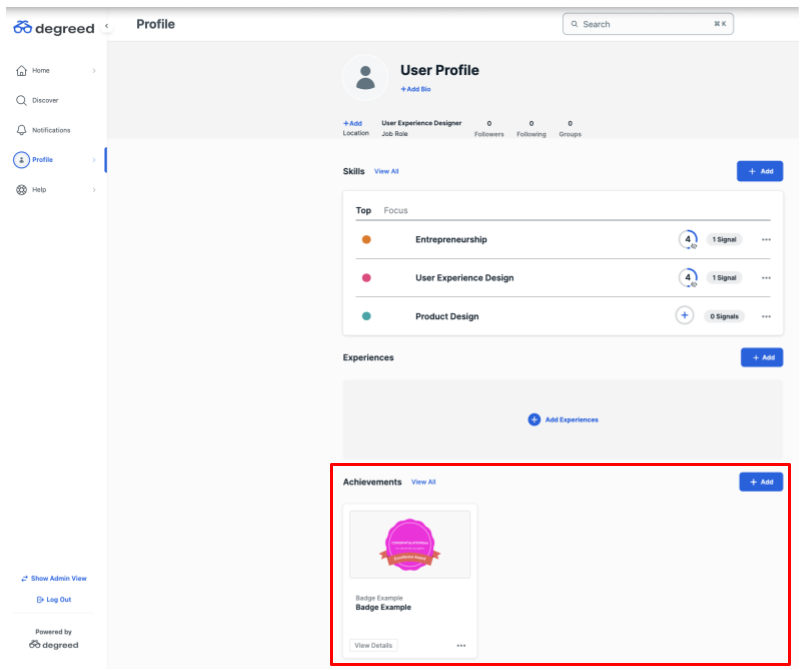
If your organization is using CredSpark+, you can post earned Recognitions to a learner's Degreed profile where they'll appear in the Achievements section as badges. Below are the steps to enable this feature.
Note: If you are already using the Passing Degreed Pathway Name to CredSpark feature, you will need to create a new API key to use this feature as well. We will cover this in the steps below.
Requirements
- Admin access to your organization's CredSpark account. If you are not an Admin, please contact your CredSpark account manager.
- Access to API keys within your Degreed account.
Step-by-Step Setup
1. Generate a Degreed API Key
Log in to your Degreed platform and follow these steps:
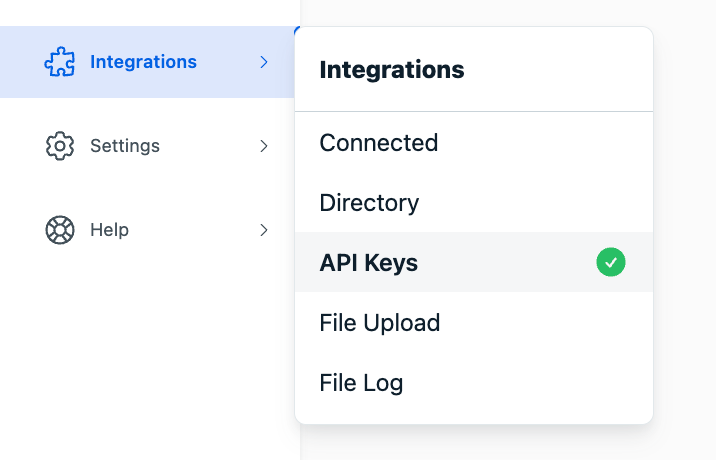
- Go to Integrations → API Keys
- Create a new API key
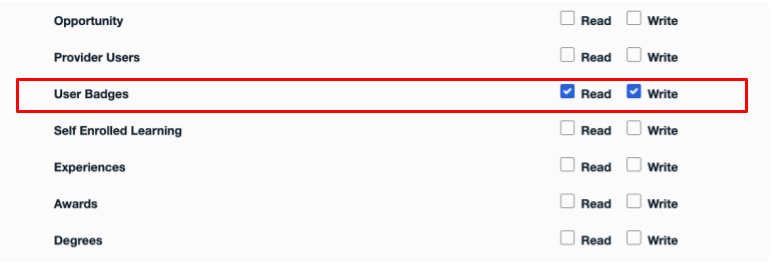
- Make sure the key has "User Badge" access with Read and Write permissions
Once created, copy the following fields:
- Client ID
- Client Secret
IMPORTANT NOTE:
Already using the Pathways feature?
Degreed API keys can't be edited after they're created. To run both features, create one new key with both the Pathways and User Badge scopes enabled, then update your CredSpark integration with that new key's Client ID and Client Secret (Step 2). The new key replaces your old Pathways-only key, which you can delete once the connection is updated.
2. Connect Degreed to CredSpark
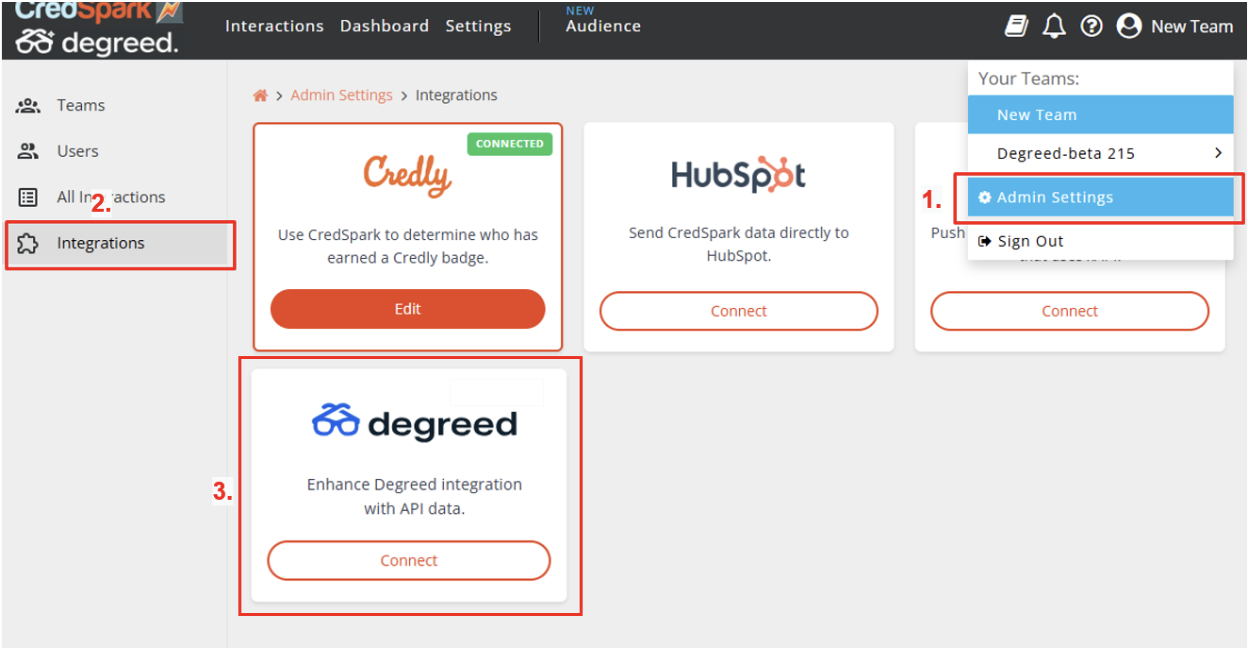
Next, go to your CredSpark Admin Settings:
- Click the Integrations tab
- Find the Degreed integration card and click Connect (or Edit, if you're already connected)
- A modal will appear. Paste in the Client ID and Client Secret you copied from Degreed.
- Under Enabled features, check Badges (post a badge to Degreed when a recognition is earned)
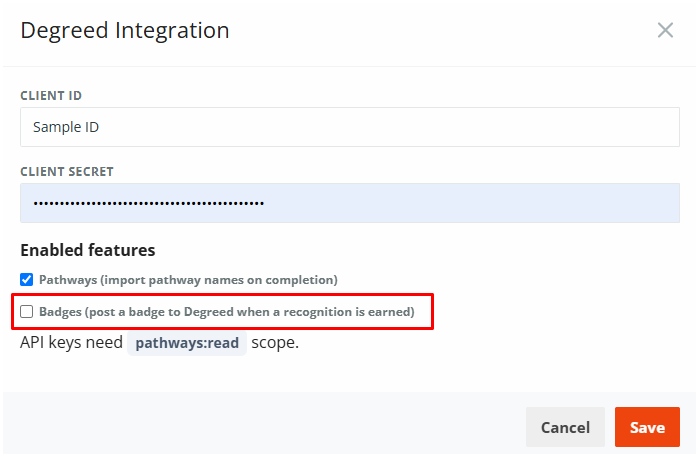
- Click Save
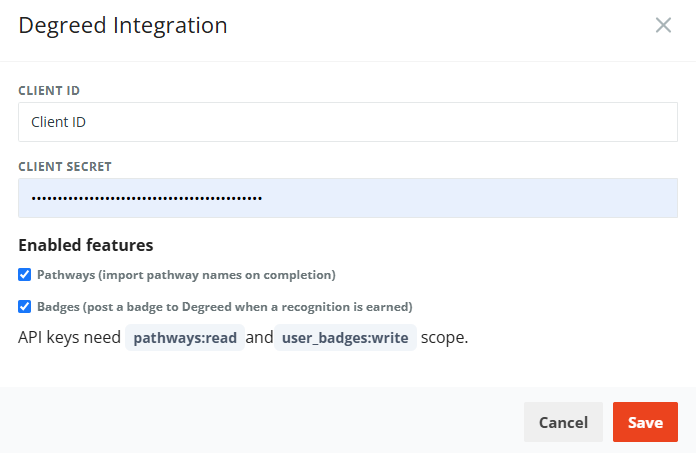
Once saved, the integration is active. When a learner earns a Recognition by completing your content via Degreed, the badge is posted automatically to the Achievements section of their Degreed profile. A badge can also be awarded when a learner completes the content outside of Degreed, as long as the interaction uses SSO and the learner's Degreed identity (aliasUID) is known.
Important Considerations
This feature isn't compatible with the "Make responses anonymous" setting. If you enable it, we won't be able to post the Recognition to the learner's profile.
Disconnecting
To turn this off, go to the Integrations page, click the “Edit” button next to Degreed, and either uncheck Badges (to keep Pathways running) or select “Disconnect” (to remove the integration entirely). This stops CredSpark from posting Recognitions to Degreed, but won't affect any other settings or data.