

Templates let admins create reusable interactions that teams can use as a starting point when creating new interactions. A template can be made available to all teams or only selected teams. Only admins can create and manage templates.
Create a Template
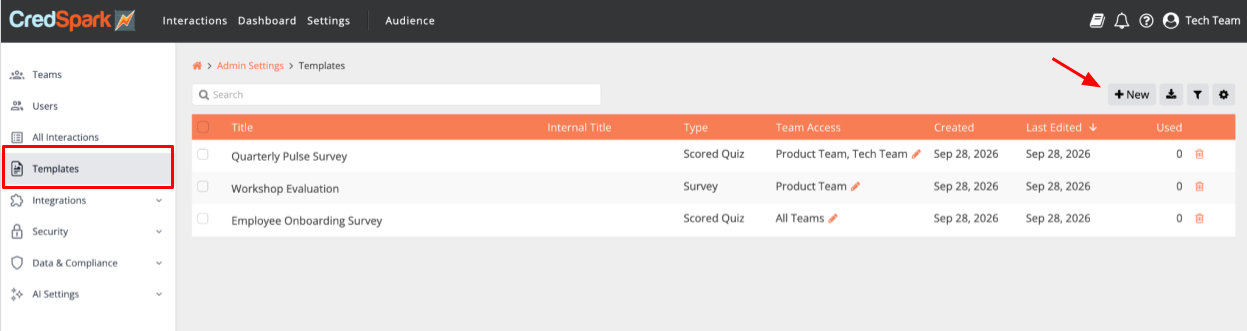
1. Go to Admin Settings → Templates and Click New.
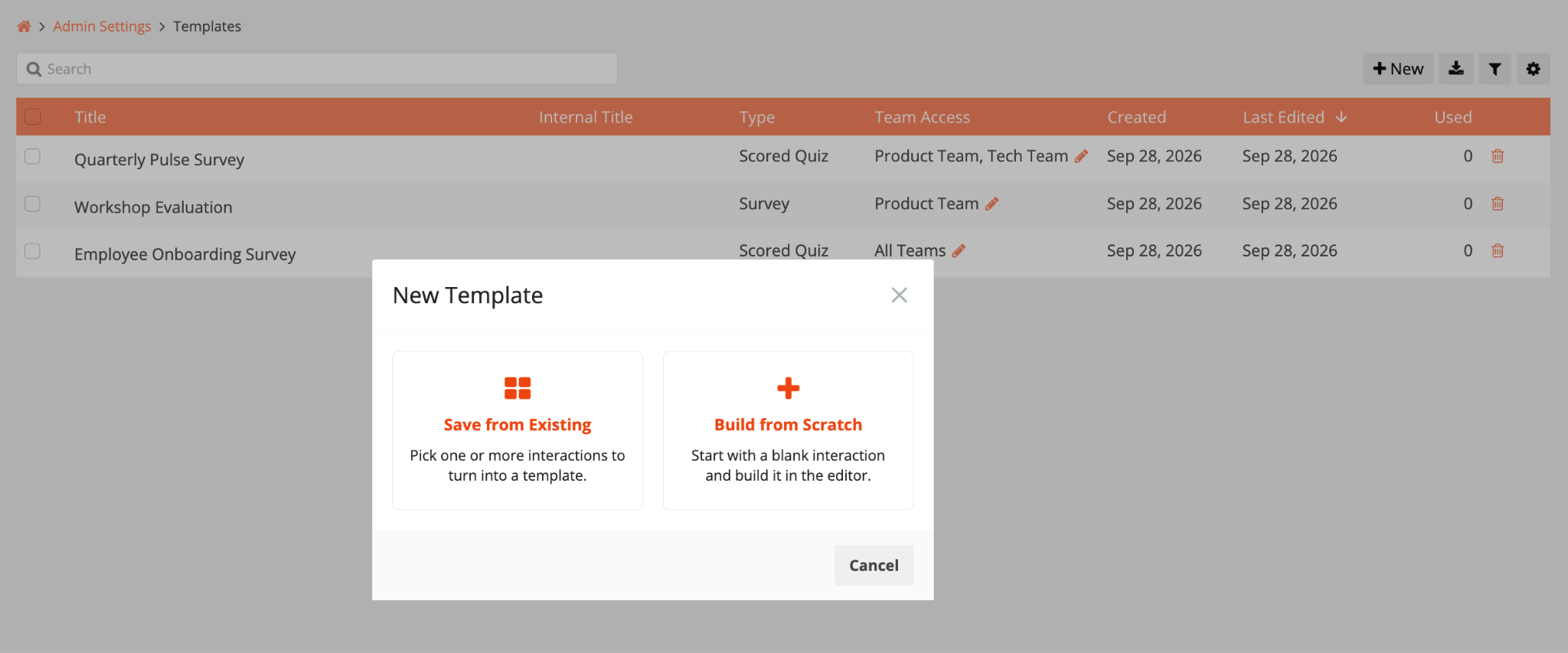
2. Choose how you want to create the template:
- Select from existing interactions
- Build from scratch
Select from existing interactions
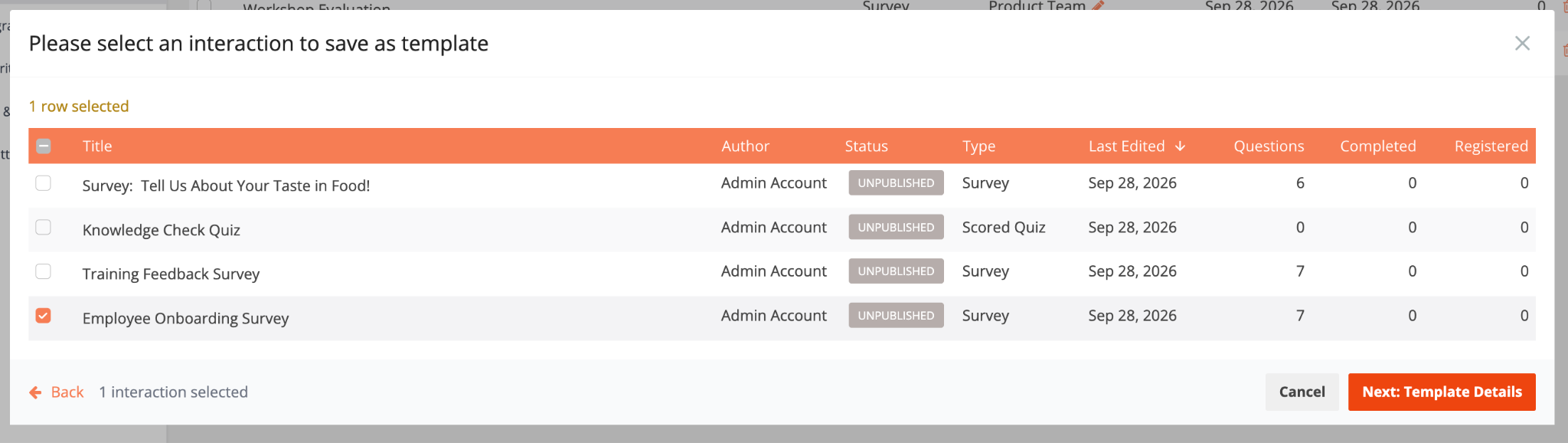
Choose this option if you already have an interaction that you want to use as a template.
1. Select the interaction or interactions you want to use.
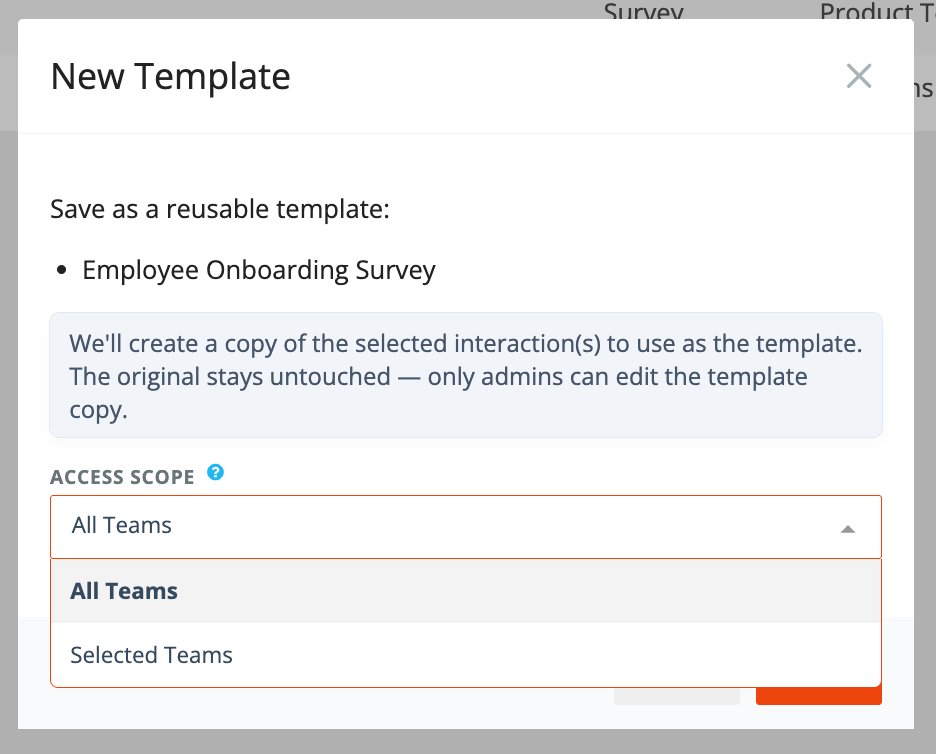
2. Choose which teams should have access:
- All Teams
- Selected Teams
3. Create the template.
We’ll create a copy of the selected interaction to use as the template. The original stays untouched - only admins can edit the template.
Questions, logic, tags, settings, and other configurations are copied to the template. Response data is not copied.
You can update which teams have access later.
Build from scratch
Choose this option if you want to create a new template without using an existing interaction.
1. Select the interaction type.
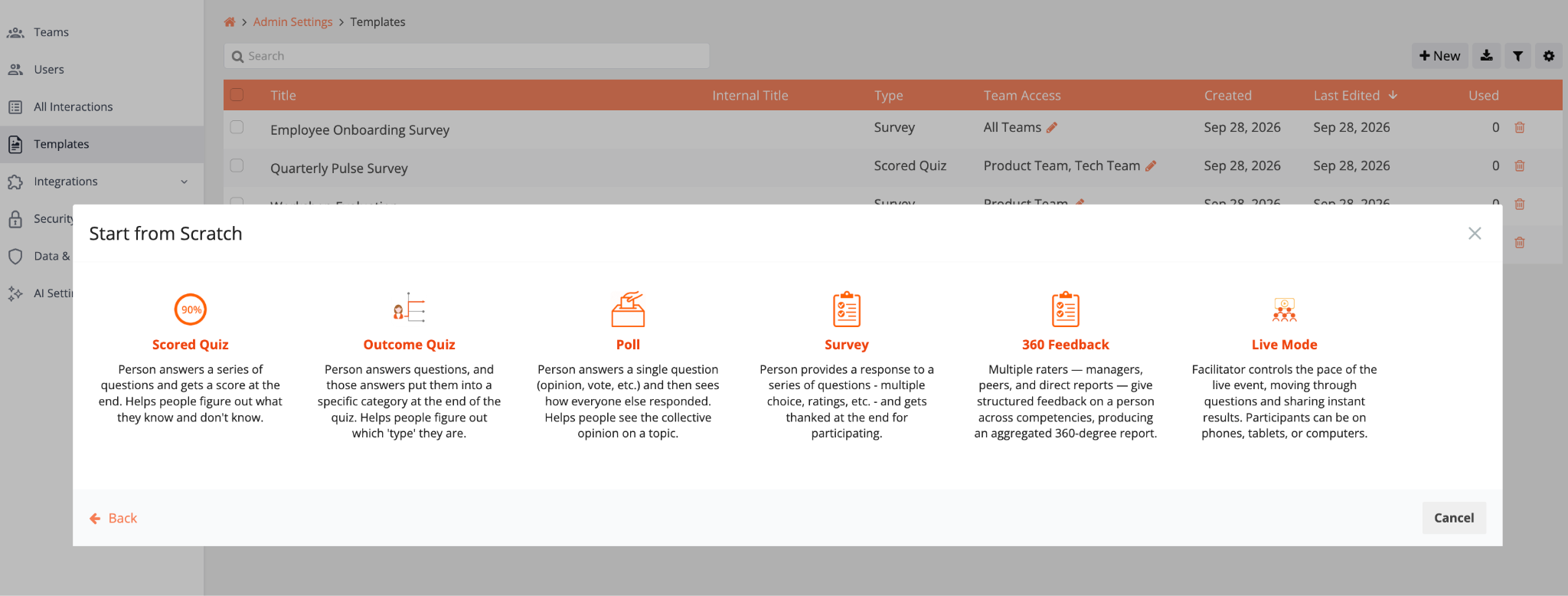
2. Choose which teams should have access:
- All Teams
- Selected Teams
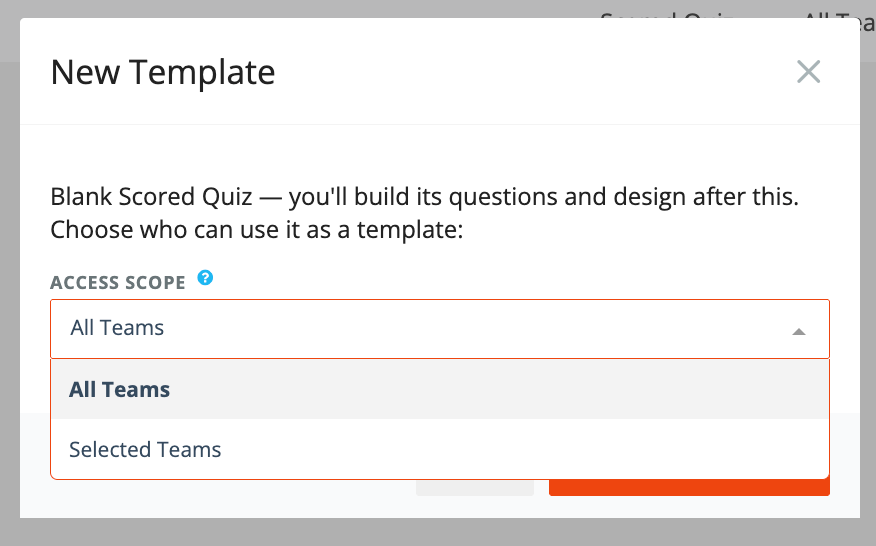
3. Create the template.
4. Add your questions, design, logic, and other settings.
Note: If you are still building the template and do not want it to be available to any team yet, set Team Access to Selected Teams and leave all teams unselected. You can update the team access later when the template is ready.
Use a Template
To create a new interaction from a template:
- Go to Interactions / Home Page.
- Click New.
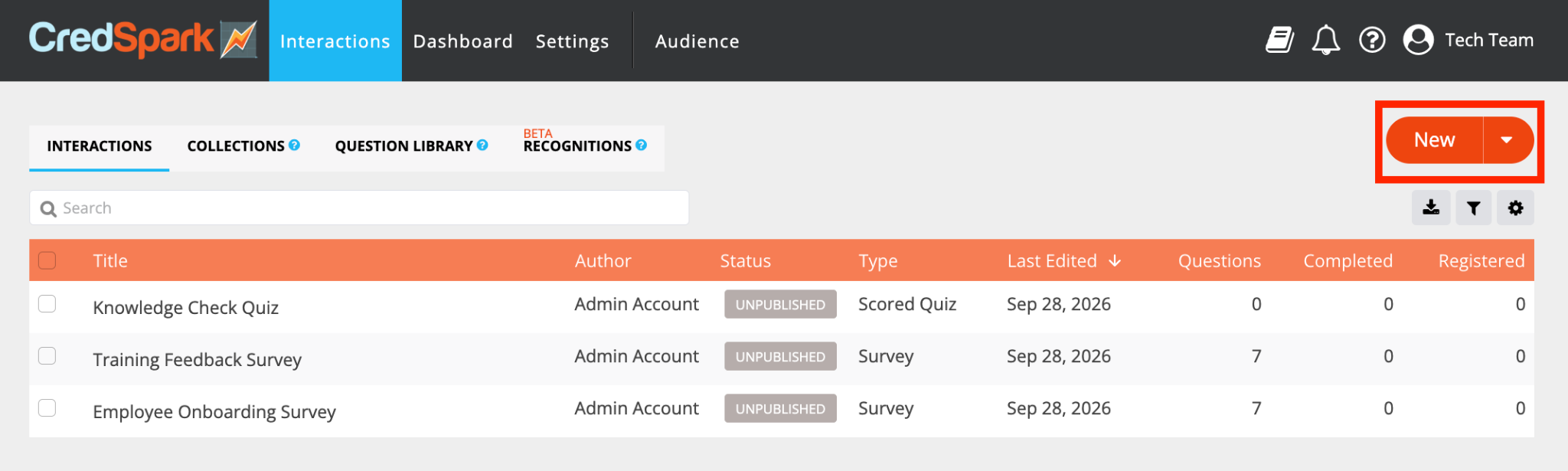
3. Find your organization’s templates.
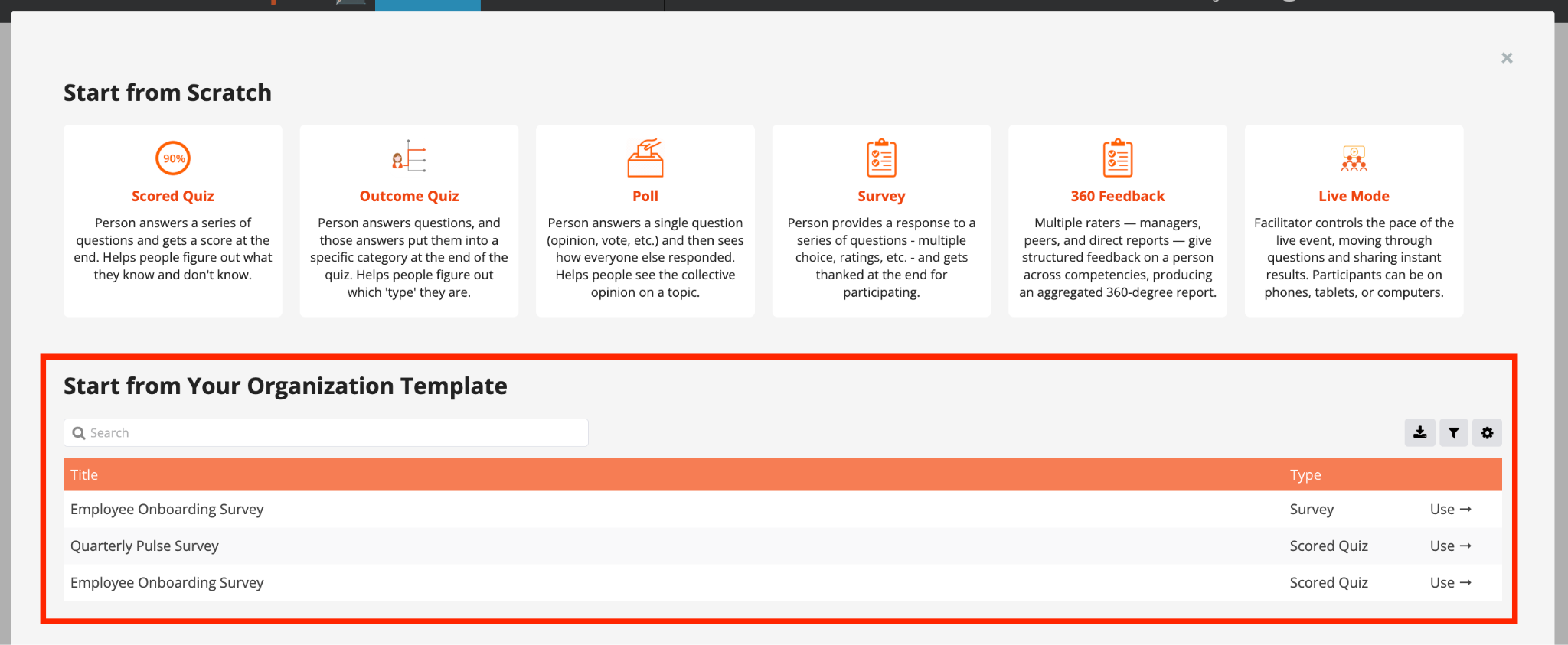
4. Select the template you want to use.
Only templates available to your team will be shown.
A new interaction is created from the template. It is separate from the template, so changes you make to the new interaction will not change the template.
Edit a Template
- Go to Admin Settings → Templates.
- Click the template you want to edit.
- Make changes
Note: Changes made to a template only apply to new interactions created from that template going forward. Interactions that were already created from it will not be updated.
Templates cannot be published or used to collect responses directly. Because of this, some options that are available in regular interactions are not shown when editing a template, for example Data & Analytics tab, and also Delivery Options in the Deliver tab.
Clone a Template
To create a copy of an existing template:
- Open the template.
- Click Clone.
- Confirm by clicking Clone Template.
A new template is created with the same team access as the original template.
The cloned template is separate from the original, so you can edit it without changing the original template.